
Ditch / Field notes
How to find jobsite photos with AI search in Ditch
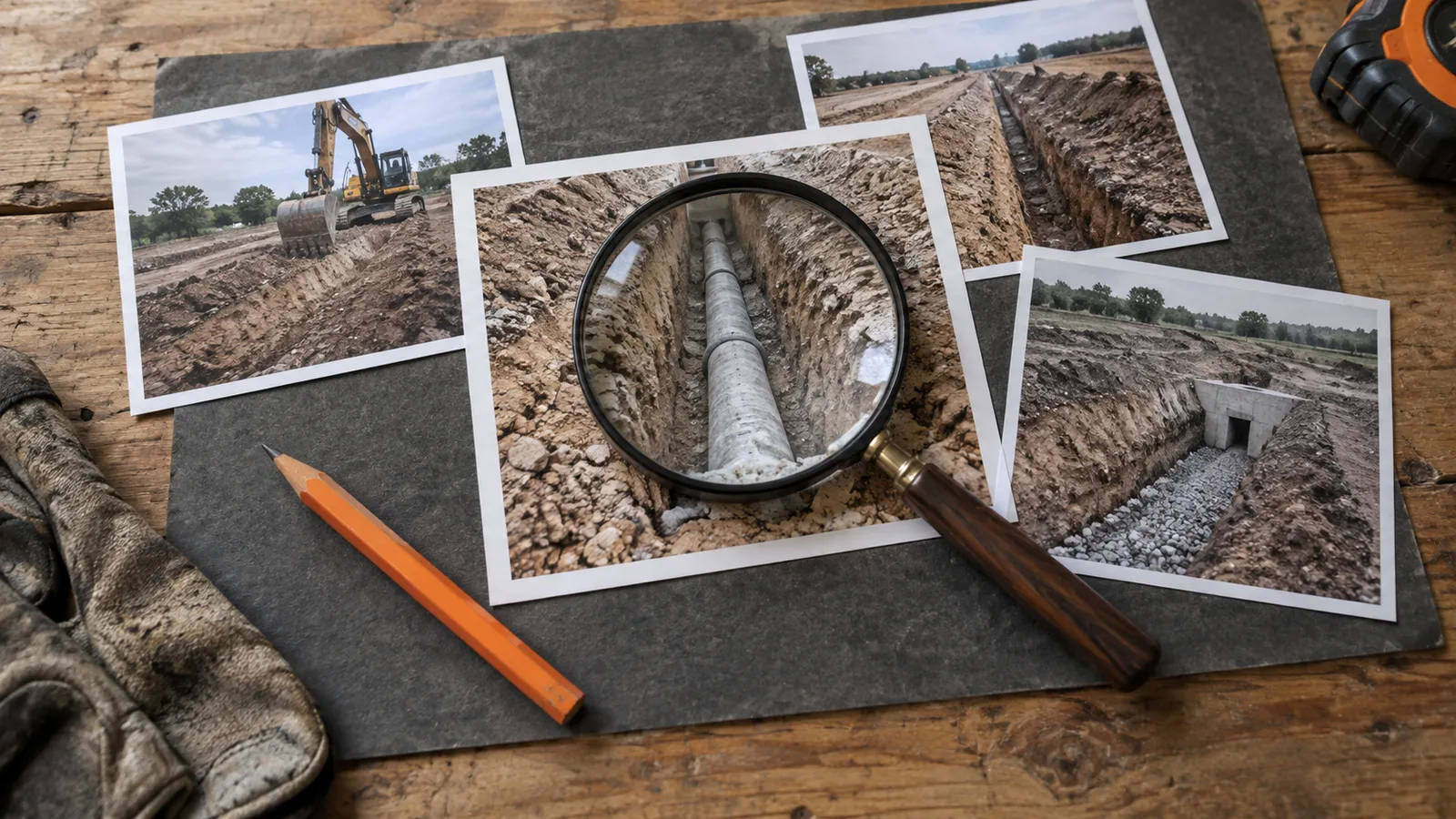
Ditch helps you find construction photos by what they show, alongside context such as notes, time, and location. Start with the correct jobsite, search for a visible subject or type of work, and review the matching photos. You do not need to remember a filename or manually tag every image.
This guide comes from the Ditch team. It describes a way to evaluate the product on your own photos; the example searches below are suggestions to try, not measured results or guaranteed matches.
Try it live on a real project.
Start with a question you can actually check
“Find the photo I need” is difficult to evaluate. “Find the photos of the electrical panel before the wall was closed” gives you a subject and a point in the project to investigate. You still need to check that the results show the panel and stage you mean.
Before searching, write down what you remember: the jobsite, the approximate period, the work type, and any location or note. Even two of those details can help you narrow a large record.
Use this retrieval workflow
- Open the relevant jobsite. Keep the search tied to the project whose record you need. If you are investigating several jobsites, review each relevant record rather than assuming a single result covers every site.
- Search for what would be visible. Try a work type, piece of equipment, or site condition. Concrete, an excavator, or standing water are more grounded starting points than “the problem from Tuesday.”
- Add context as needed. Use available notes, the timeline, and the map to narrow your review. Location is only useful when the photo has usable location data.
- Open the result. Check the image and available details. A similar-looking room or machine may not be the one you meant.
- Save the useful selection into an album. If someone else needs the photos, share the selected record with an explanation of what it shows.
Example searches to try
| What you remember | A starting search | What to verify |
|---|---|---|
| Work around a concrete pour | Concrete | Correct location and construction stage |
| A machine present during a site visit | Excavator | Correct machine and visit |
| Wet conditions in an area | Standing water | Whether the image shows the area and time you need |
| A detail someone described in a note | A distinctive word from that note | Whether the note refers to the photographed work |
Try a broader term if a specific phrase returns nothing useful. A crew’s nickname for an area may not be visible in a photo unless someone recorded it in a note.
Search finds candidates; your review establishes context
AI can misidentify a subject or miss a relevant photo. An empty result is not proof that work did not happen. Check the timeline and nearby photos when the answer matters, and ask the person who captured them if the context remains unclear.
Ditch also offers jobsite chat to ask questions about the site’s photo record. Use it to help explore the record, then inspect the underlying photos before turning an answer into a customer update or project decision. Neither search nor chat replaces an inspection.
Run a small test before changing your crew’s workflow
Pick a jobsite you know and a set of photos you are authorized to upload. Write down five retrieval questions before using search. Include an obvious object, a work type, a location, an older photo, and something absent from the set.
For each question, record whether you found the right photo, whether irrelevant matches appeared, and how long the review took. Compare that with your current camera roll or folder process. Keep the actual results; do not assume an improvement because the search uses AI.
Try Ditch with your own record
AI search and jobsite chat are included across Ditch’s published plans, subject to fair-use limits. The Free plan lets you start on one active jobsite. Storage, album capacity, and team access differ by plan; the pricing page has the current limits.
Start free on one jobsite and run the five-question test. If finding the right photos becomes easier, build your next customer update with a shared album. For capture options, see Ditch Cam.