
Ditch / Field notes
How to share jobsite photos with customers using Ditch
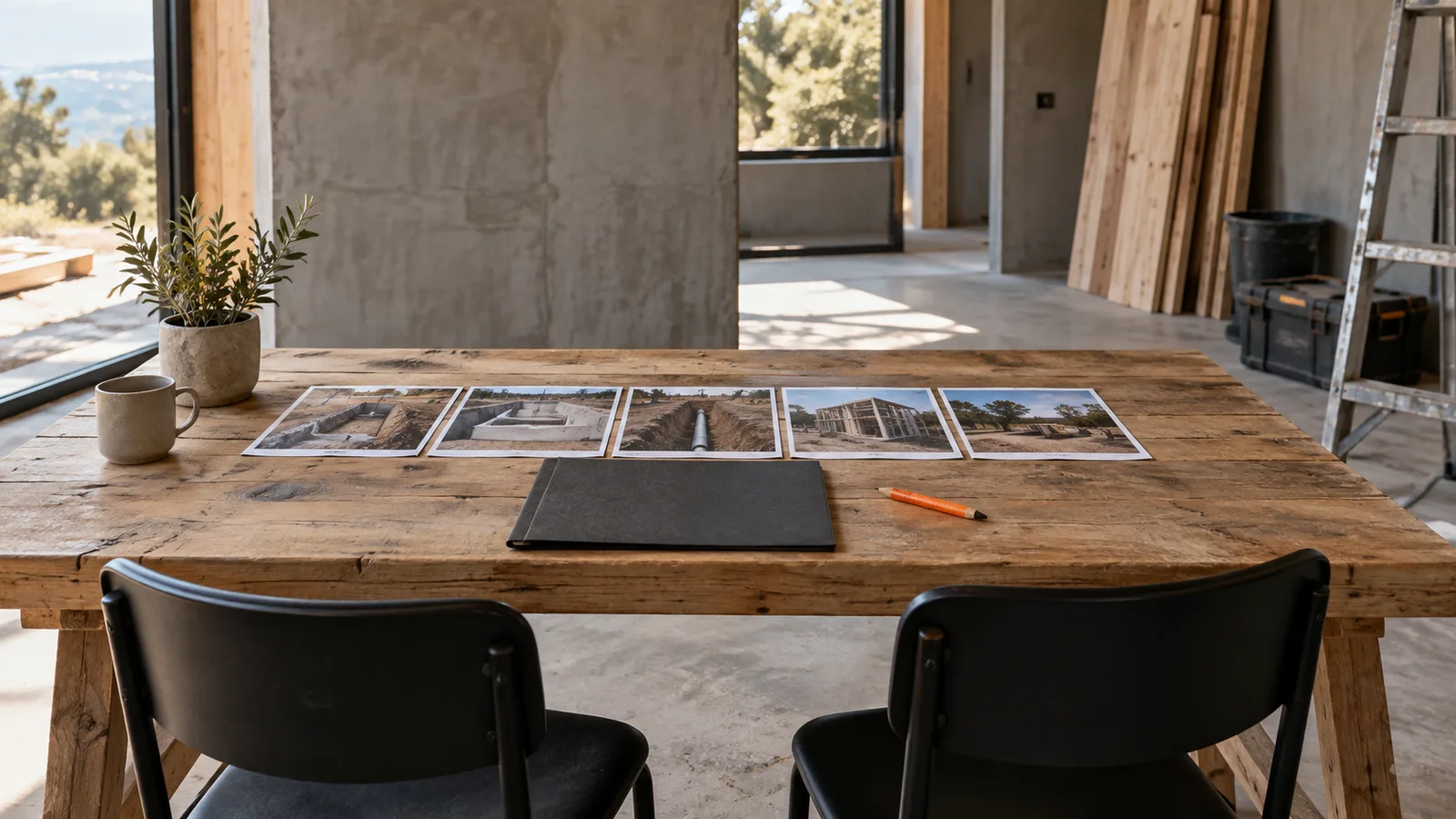
A useful customer update answers three questions: what changed, where did it change, and does anything need a decision? In Ditch, you can select jobsite photos into a shared album and send the link. Your customer can view that album without creating an account, and the album does not give them access to the rest of the jobsite.
This guide is written by the team behind Ditch. It explains the workflow our product supports and includes a sample update you can adapt. The example is illustrative, not a customer case study.
Choose photos that answer a question
Start with the purpose of the update rather than everything the crew photographed. For a weekly progress check, choose an overview, a few details showing completed work, and a photo of any item needing a decision. For a specific question, two well-chosen photos may be enough.
- Overview: help the customer recognize the room, elevation, or area.
- Detail: show the work you are describing at a useful distance.
- Comparison: add an earlier view from a similar position when it helps explain the change.
- Decision: show the location of an open question and describe the next step in your message.
Avoid selecting ten nearly identical closeups. A person who was not on site needs enough context to understand what they are seeing.
Build the update in Ditch
- Open the right jobsite in the web app. Review its photo record. Use search, the timeline, or the map to find the relevant work. The map is useful for photos that have location data.
- Select the photos for a shared album. Keep the album focused on the customer and the purpose of this update. Internal documentation can stay in the jobsite record.
- Review what you selected. Check that the photos belong to the correct site and reporting period. Remove unrelated work, personal information, and anything you are not authorized to share.
- Send the album link with a short explanation. The customer does not need a Ditch account to view it. Explain what changed and call out any decision separately.
Before sending a link broadly, open it in a signed-out browser to check the recipient experience. Treat a shareable link as something the recipient could forward; only include material suitable for that audience.
A customer update you can copy
Subject: Kitchen remodel — progress update for [date range]
Here are this week’s selected photos: [album link].
Completed: [work completed] in [room or area]. The overview shows the location; the detail photos show [specific change].
Next: We plan to [next step], subject to [dependency, if any].
Decision needed: Please confirm [specific choice] by [date]. See [photo description] for context.
Keep uncertain work labeled as planned. A photo can show the state of a location, but it does not by itself establish that an inspection passed or a contractual milestone was accepted.
When an album is enough—and when you need more
A shared album works well when the customer wants a visual progress update and a link they can open. If your project requires a fixed report, a prescribed form, a signature, or a formal submission process, follow that requirement separately. Do not assume that sharing an album completes it.
Keep the source photos organized even after sending the update. Next month’s question may concern a detail that did not belong in this week’s customer album.
Try it on one real jobsite
Ditch’s Free plan currently includes one active jobsite and one shared album. Paid plans include team access and higher capacity; see the current plans and limits before inviting a broader team. AI features are subject to fair-use limits.
Start free, add photos from a job you know well, and build one customer update. The useful test is whether someone who was not on site can understand the progress without calling you for context.
Related: Find jobsite photos with AI search · Ditch sharing FAQ.