Search · excavator
Find the equipment
Every photo is scanned for machinery as it uploads. Type the machine and find shots it appears in — no one had to tag it.
 Jobsite progress, documented
Ditch photo search
Search by what's in the photo. Narrow by jobsite, date, and location — without manually tagging every image.
Type what you’re looking for, or choose a search below.
Three searches to try
The machine. The work. The spot you need to check again. Start with what you remember.
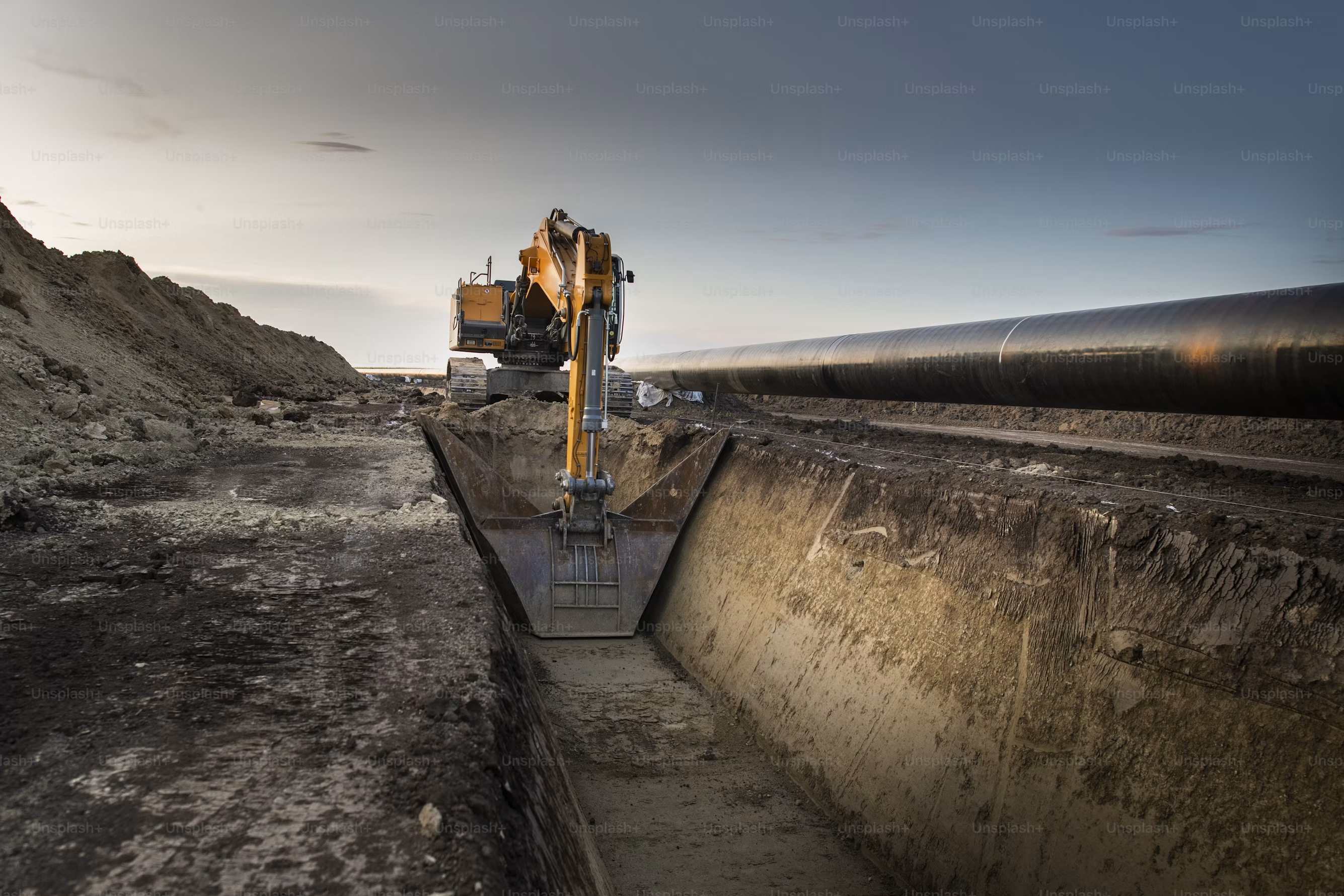
Search · excavator
Every photo is scanned for machinery as it uploads. Type the machine and find shots it appears in — no one had to tag it.
Search · concrete
Photos are grouped by work type — concrete, storm drainage, trenching. Search the work and see the stages in date order.
View · map
With location enabled, Ditch files photos by where they were taken. Pick an area to see the work before, during and after. This demo uses named site areas.
How it works
Capture
Crews take photos in Ditch Cam or upload what they already have. No albums to pick, no folders to name.
File
Each photo is read for work type, equipment and what's visible, and filed with its capture time and location when available.
Find
Type what you're looking for, narrow by date or jobsite, and open the shot — on the web or on your phone.
Your photos, your jobsite